

Xpiks Cloud Upload

Upload once. We handle the rest.

  • 01

    Upload files to Xpiks Cloud

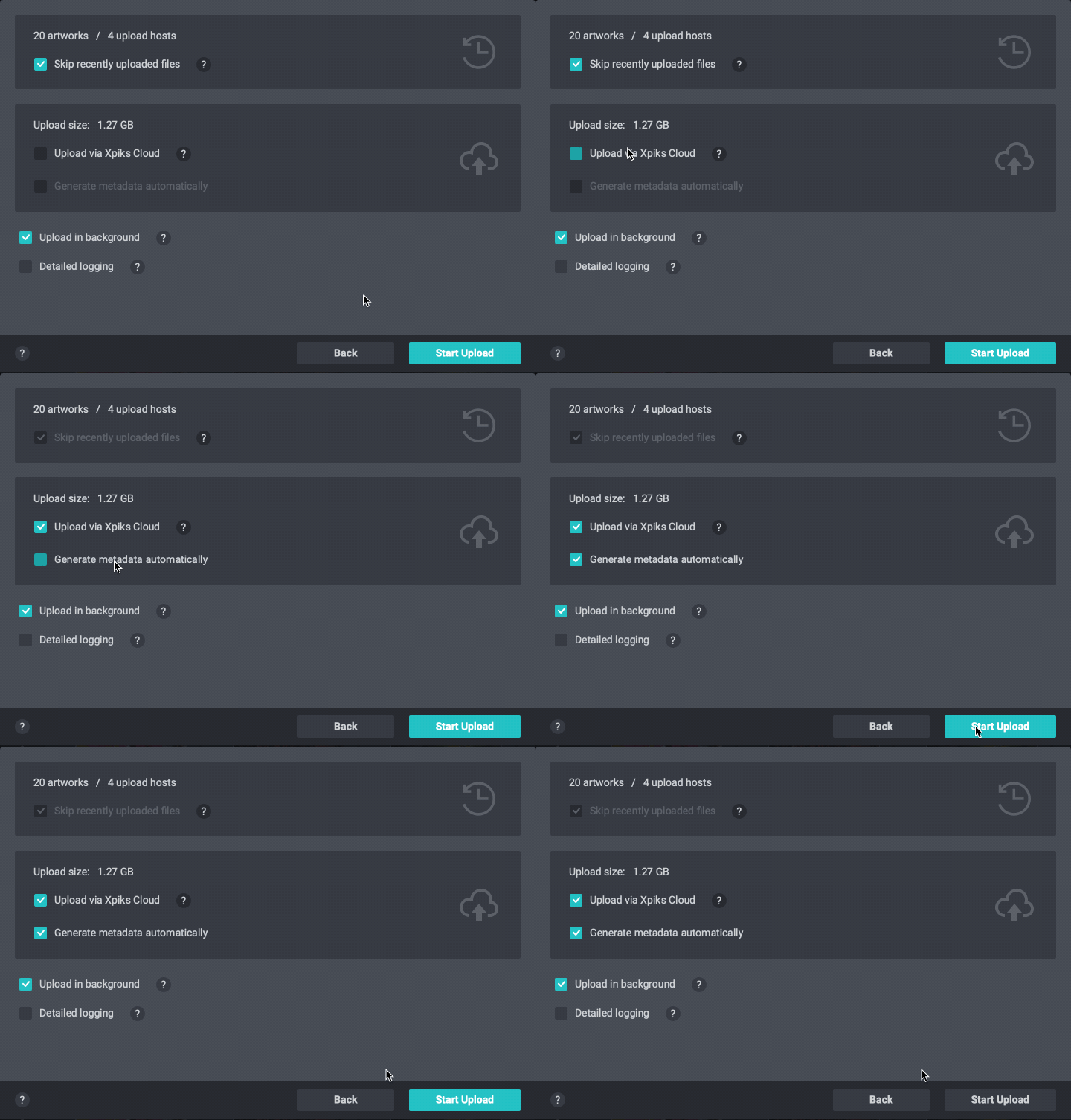
    Upload your files with Xpiks as usual, but check "Upload via Xpiks Cloud" checkbox

  • 02

    We do keywording and uploading

    Xpiks Cloud automatically generates metadata and uploads to selected agencies

  • 03

    Enjoy your saved time!

    You will receive a notification when it's done

App screenshot

Overview

You can upload all files directly from your computer to agencies FTP servers. But that would take a lot of time in case you are uploading many files or large files. Now you can upload only once and let Xpiks Cloud handle the rest.

Additionally, you have an option to generate automatic metadata during upload (starting with Xpiks 1.7.5), so your whole workflow now might be just opening files in Xpiks and pressing "Upload" button!

Enabling cloud upload

One click away

When you start a new upload in Xpiks, just mark the "Upload via Xpiks Cloud" checkbox - it's that simple!

Xpiks will upload your files to Xpiks Cloud instead and then they will be uploaded to the agencies and metadata will be generated if needed.

Track uploads via plugin

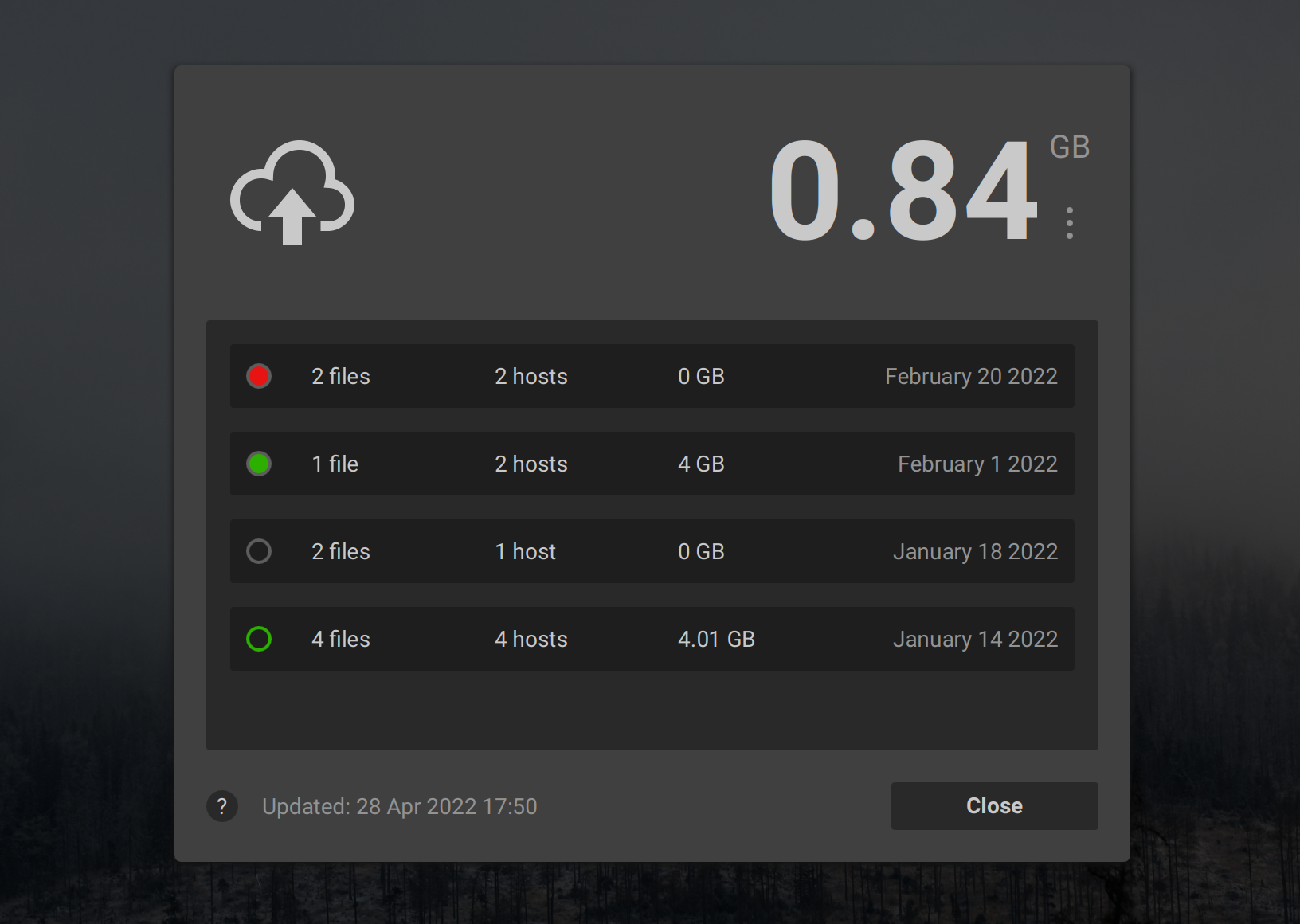
After upload is finished, you will get an email notification to the email associated with your license. Also you can install a cloud upload plugin that will allow to see the upload status of your latest uploads and cloud upload balance of your account.

See more
Cloud Upload plugin
See more

Pricing

Each Pro+ subscription includes a monthly renewable allowance* of 4 GB.

When cloud upload is completed, it's total upload size is withdrawn from the respective account's balance. Account's balance can be topped up on demand at any time.

9

50 GB

18

100 GB

49

300 GB

* This allowance applies only to uploads made during that month. It does not accumulate over time, but if no uploads were made in a given month, full allowance will carry over to the next. Allowance for yearly subscriptions is split for each month.

Limits & FAQ

How is "total upload size" calculated
Formula is Total upload size = (files) x (agencies). Total upload size is a size of the files that you are uploading times the number of agencies you are uploading to.

Examples:
  • 1 file of size 120 MB uploaded to 5 agencies is 600 MB total upload size (1*120*5)
  • 5 files 50 MB each uploaded to 2 agencies is 500 MB total upload size (5*50*2)
Trial evaluation
Cloud Upload is not available during trial.
Cloud Upload limits
  1. To start a cloud upload, the total upload size must be more than 300 MB. Otherwise Xpiks will use a direct upload since it will be faster.
  2. At this time Xpiks cloud supports uploads of up to 250 files in a single batch and individual files cannot be larger than 10 GB.
How is Cloud Upload billed
Account balance is measured in bytes (as in "Megabytes" or "Gigabytes") to reflect the "currency" of each cloud upload. Your balance is the sum of included allowance and additional allowance. Included allowance is what comes with your subscription. Additional allowance is any amount purchased separately.

When charging for cloud upload, included allowance is used first and only after it is exhausted, additional allowance is used.

Example:
if your account has 4 GB included allowance and your additional balance is 10 GB, when doing a 5 GB upload, you will be left with 0 GB included upload and 9 GB of additional balance. Next month your included upload balance will be reset back to 4 GB, bringing your total balance to 13 GB (9 + 4 GB).
How is automatic metadata generation billed
It's billed accordingly to the rules of Auto-Keywording plugin. Similar to Cloud Upload, each Pro+ subscription comes with included allowance and extra is available on-demand.
How failed uploads are counted
You are charged only for succeeded uploads when you start upload from Xpiks. Failed uploads do not incur any charges. This means if your upload was retried automatically, you are charged only 1 time once it succeeds.

This rule applies per file. If some files have succeeded and some have failed to get uploaded, your account will be charged only by the total upload size of files that succeeded.
Does Cloud Upload submit your files automatically
Xpiks Cloud uploads your files, but does not submit them. You will have an option to verify correctness of uploaded files and their metadata before submit.
How happens in case of overdraft
In rare circumstances it is possible for user to start uploads in a way that user's balance will be negative upon their completion. After your balance becomes negative, you will lose the ability to use cloud upload until it will be topped up.
Does unused allowance roll over
Unused additional allowance (purchased separately) always rolls over to the following month. Included allowance (4 GB) is carried over only if you don't do any Cloud Uploads in a given month.
How to top up my balance
If you're using Cloud Upload plugin, you can do in the context menu right next to your balance. Otherwise, when you start upload in Xpiks, you will get a prompt to top up if your balance will not be enough.

Security

Cloud upload security is of primary importance and is taken very seriously. Xpiks minimizes chances of compromising user data and commits to quickly disclose and mitigate security incidents.

Files

Your files will be stored for up to 7 days on Xpiks Cloud side.

Xpiks desktop application has only temporarily write-only permission to the file when you upload it to the cloud for the first time. After that the file can only be accessed by the server that performs the upload.

Login credentials

Your FTP login credentials are not stored on Xpiks server side and are encrypted in transit.

Every time you initiate a cloud upload, your FTP username and password are encrypted by a long randomly generated encryption key. Encryption key is a secret, shared between your local Xpiks application and server that runs the actual upload. Xpiks staff does not have access to your credentials.

Upload environment

Server that runs the upload does not have a persistent storage of it's own and it does not have access from the public internet into it. Before executing uploads, latest security updates are always installed first. Servers that run the upload are rotated frequently.